BreedMatch - User guide
For people thinking about adopting a dog, and for shelter staff helping them. BreedMatch suggests breeds that suit a household and explains why. It doesn't know the individual dogs at your shelter; staff do. Breed traits are averages, and every dog is an individual.
- Describe yourself and get suggestions
- Understand and adjust the results
- Browse and filter all breeds
- Keep a shortlist
- Print a report for the shelter
- When the AI assistant is unavailable
- Tips for shelter staff
1. Describe yourself
Open the home page and write a sentence or two about your home, family and routine, the way you'd tell a friend. Or click one of the suggestions under the box to put it there and adjust it: examples at first, and later your own recent searches (marked with a clock). Searches you made before signing up or logging in stay in your history. The examples are answered instantly, so they're a quick way to see how the site works.
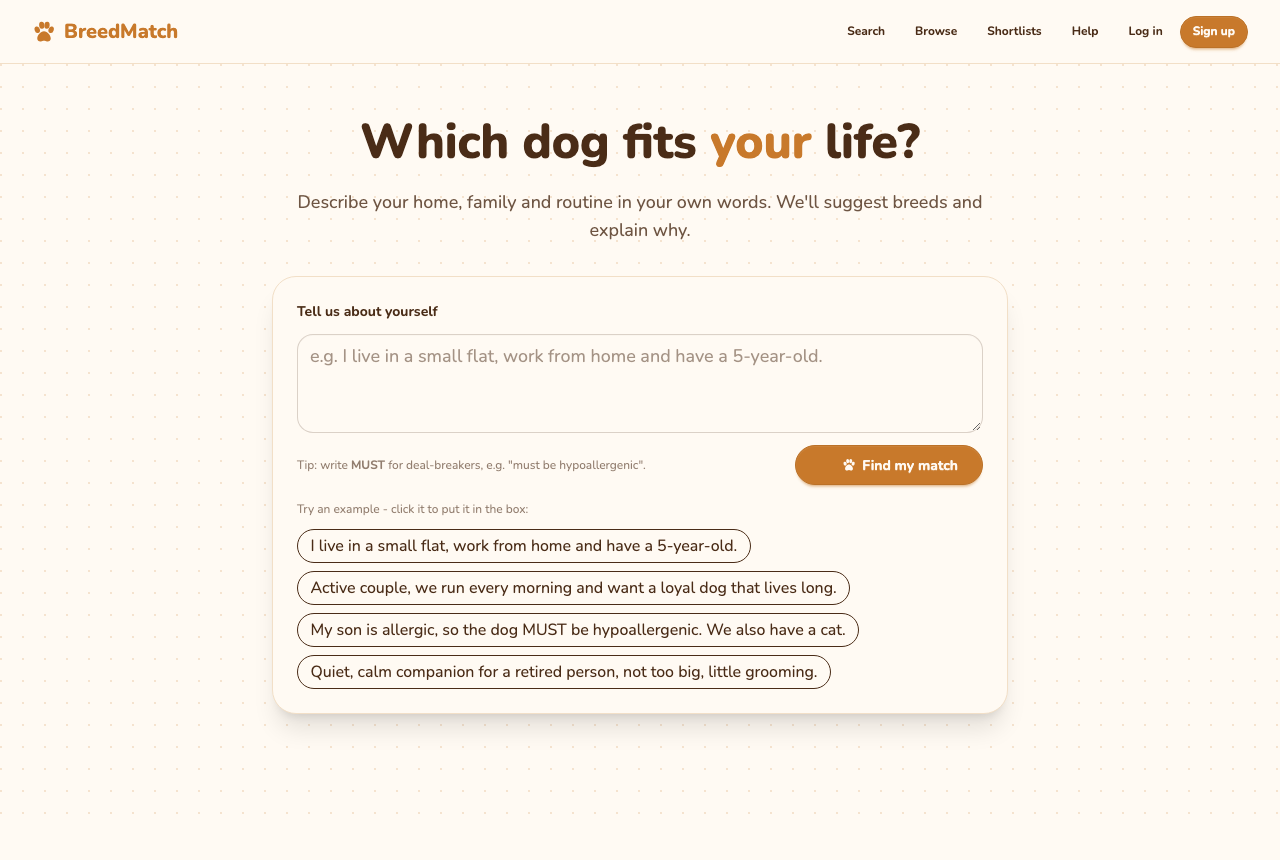
Good things to mention: flat or house, children and their ages, other pets (especially cats), allergies, how active you are, how long the dog would be alone, and noise or grooming concerns.
Deal-breakers: write MUST, required, never or can't, e.g. "the dog MUST be hypoallergenic". Those become must-haves; everything else only affects the order.
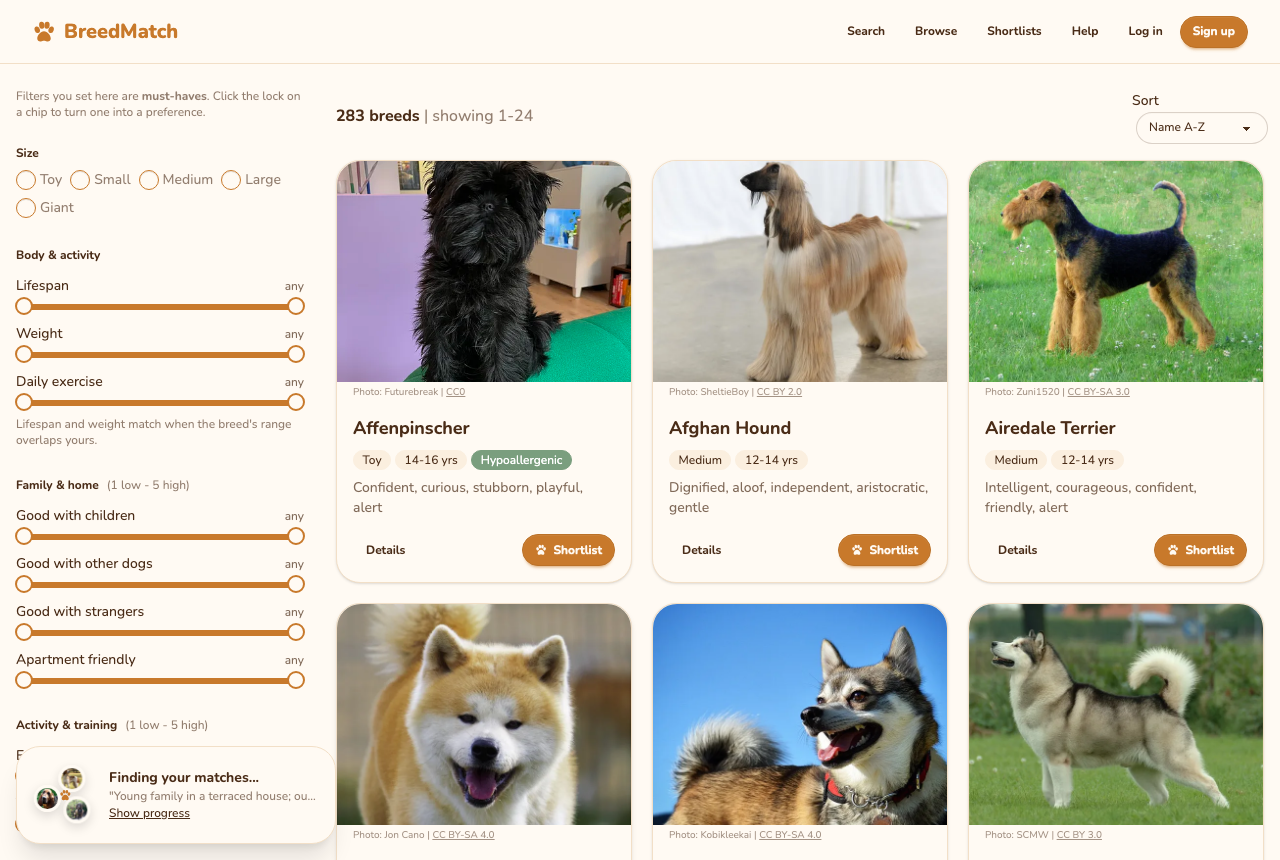
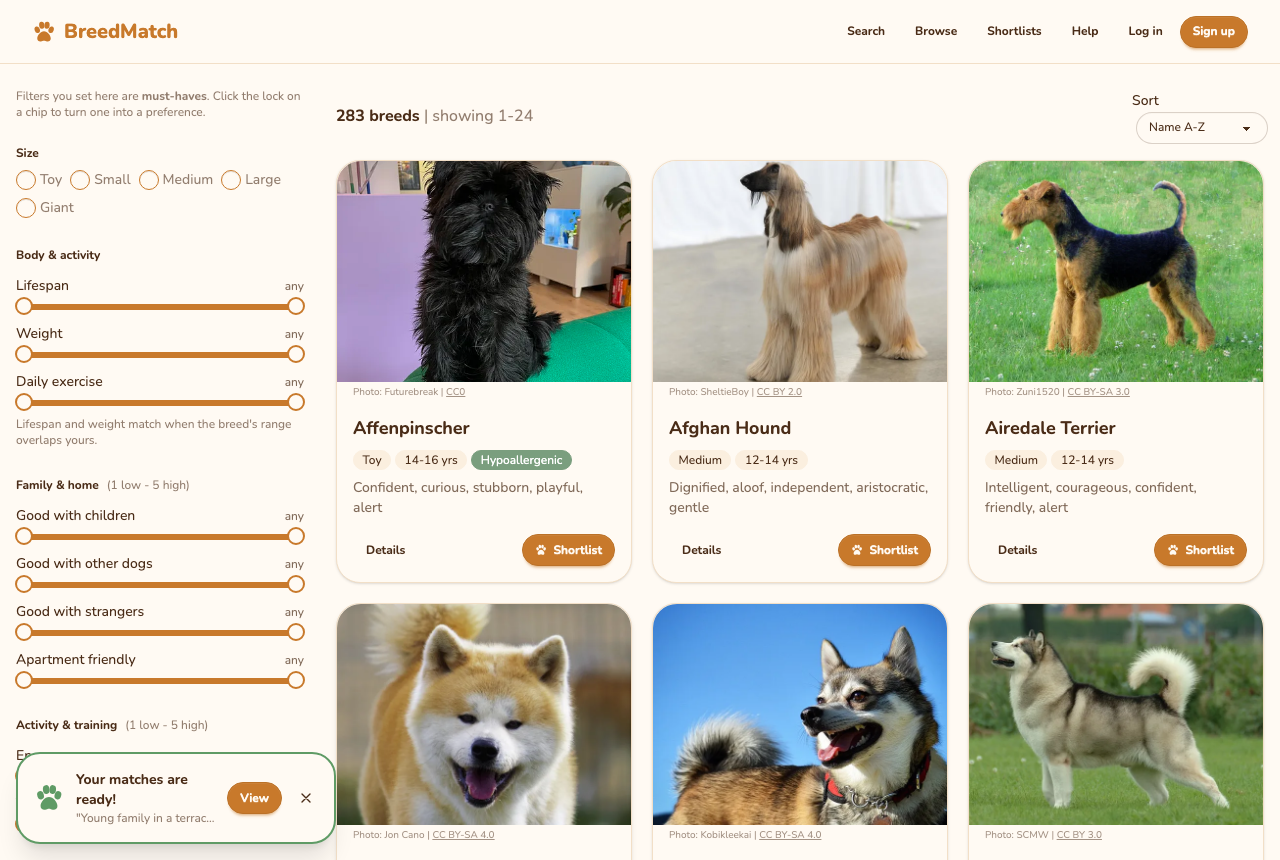
Press Find my match. The assistant runs on modest hardware, so a new search can take a few minutes; photos of three breeds spin on the waiting page meanwhile. You don't have to wait there: browse breeds or your shortlists, and a small status in the bottom-left corner tells you when your matches are ready (press View). Reloading or closing the page doesn't lose the search. Searching for the same text again is instant.
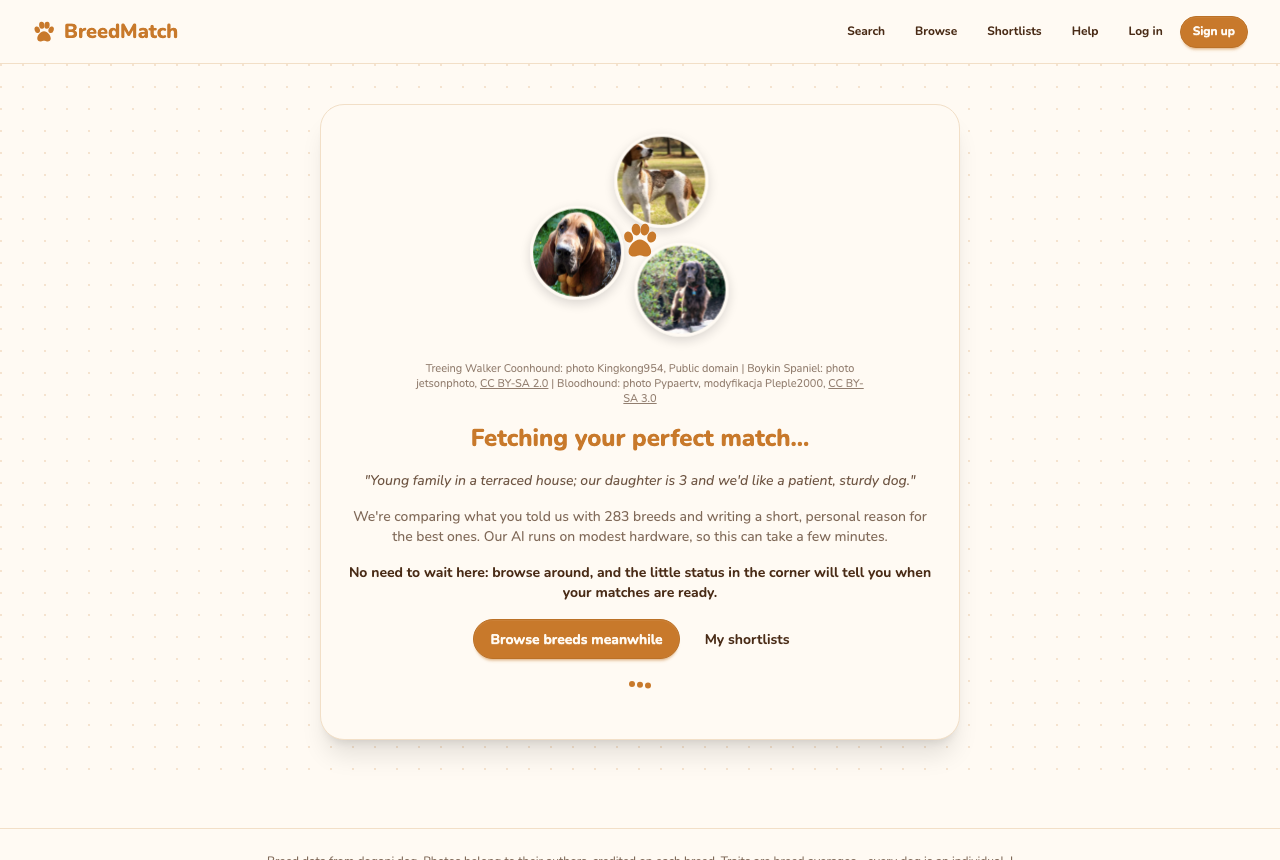
Browsing while you wait, and the corner status when your matches are ready:
2. Understand and adjust the results
At the top you see your own words, then chips showing what the assistant understood.
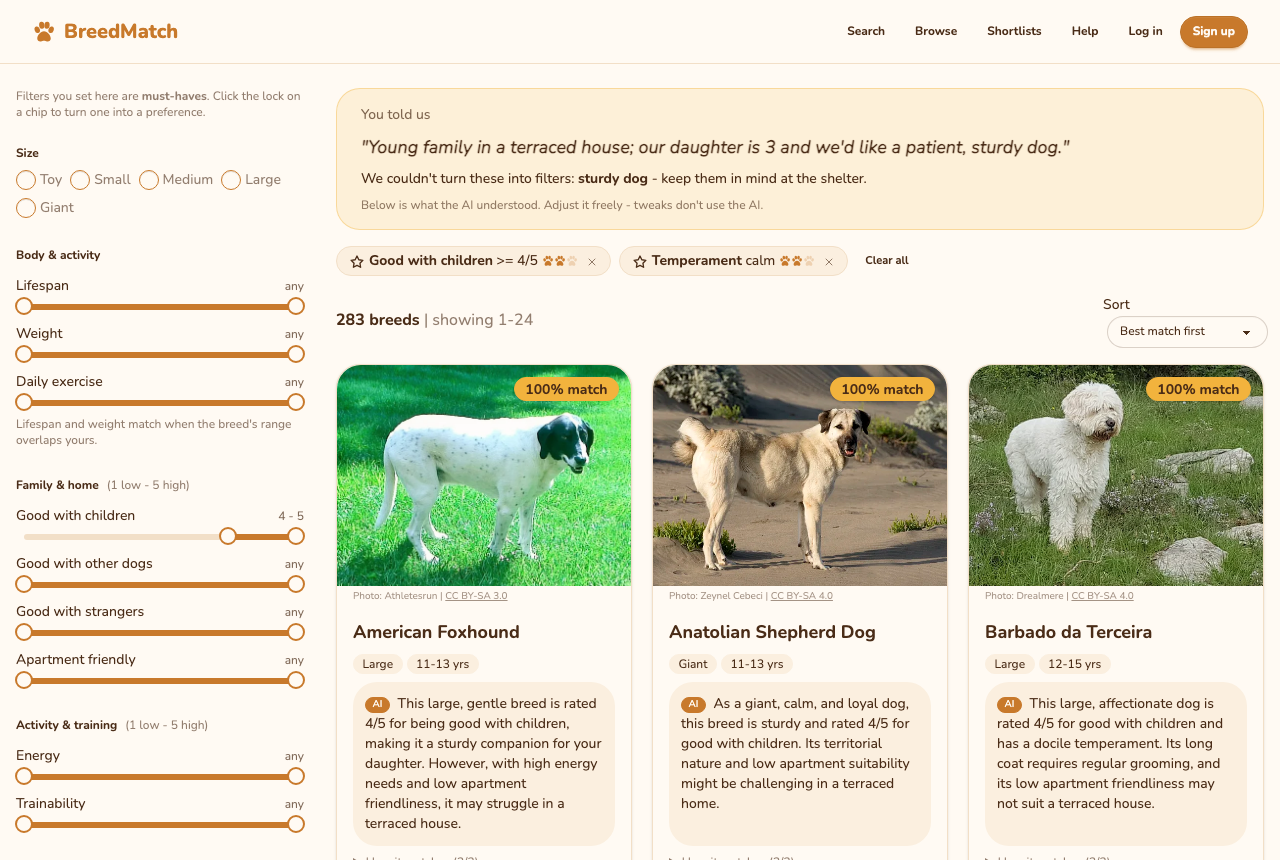
- Each card shows a match score, the breed's size and lifespan, and a short explanation. Explanations marked AI were written by the assistant from that breed's facts; the others are generated directly from the data.
- How it matches lists every criterion with the breed's actual value: a check mark when it's met, a cross when it isn't, a question mark when our data doesn't say.
- Things the assistant couldn't turn into a filter (for example a coat colour) are listed under the quote. Keep them in mind at the shelter.
Adjust the chips; this is instant and doesn't use the AI:
| Chip control | Effect |
|---|---|
| Star or lock icon | Switch between a preference (star: affects the order) and a must-have (lock: breeds that don't meet it disappear). |
| Paws (1-3) | How important a preference is: click to cycle 1 -> 2 -> 3 paws. |
| x | Remove the criterion. |
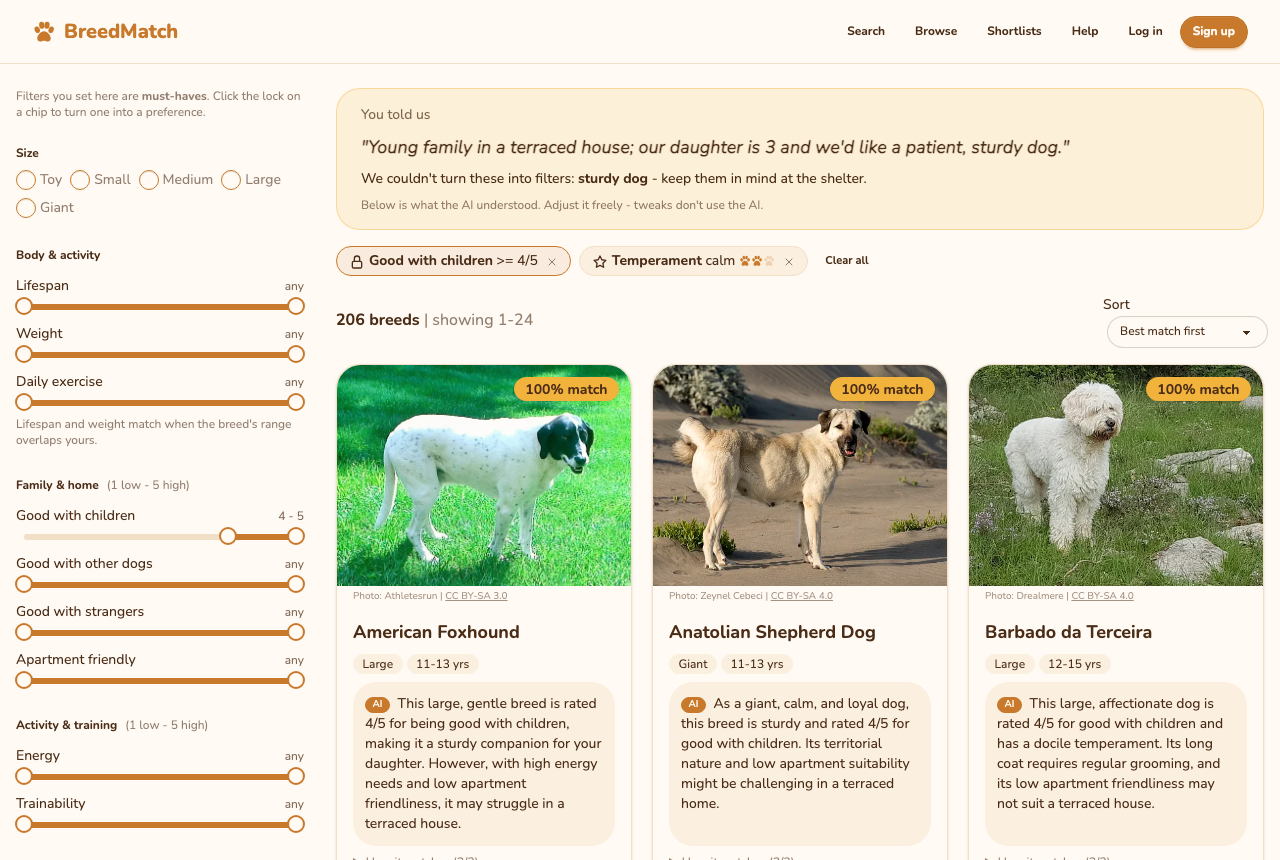
If nothing matches all your must-haves, you'll see a message: turn a lock into a star (must-have into preference), or remove a filter.
3. Browse and filter all breeds
Browse lists all breeds A-Z. Use the panel on the left (the Filters button on phones): size, hypoallergenic, coat length, coat type (curly, wire...) and temperament, plus sliders for lifespan, weight, daily exercise and the 1-5 trait levels (family and home, activity and training, care and noise). Drag either end of a slider to set a range; a slider across its full range means "any". Filters set here are must-haves; they then appear as chips you can adjust as above. Change the order with Sort.
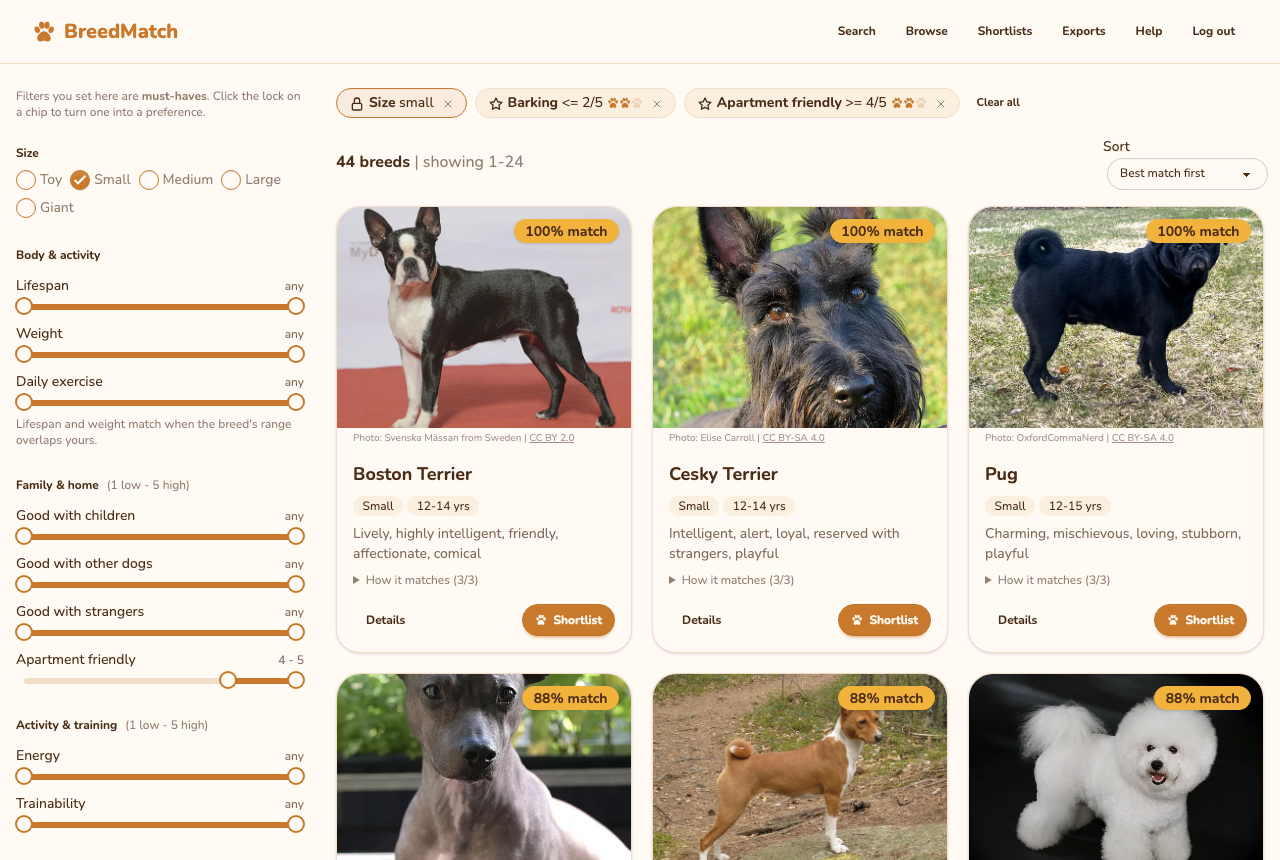
Lifespan and weight: a breed matches when its typical range overlaps yours. A breed living 10-14 years matches "at least 12".
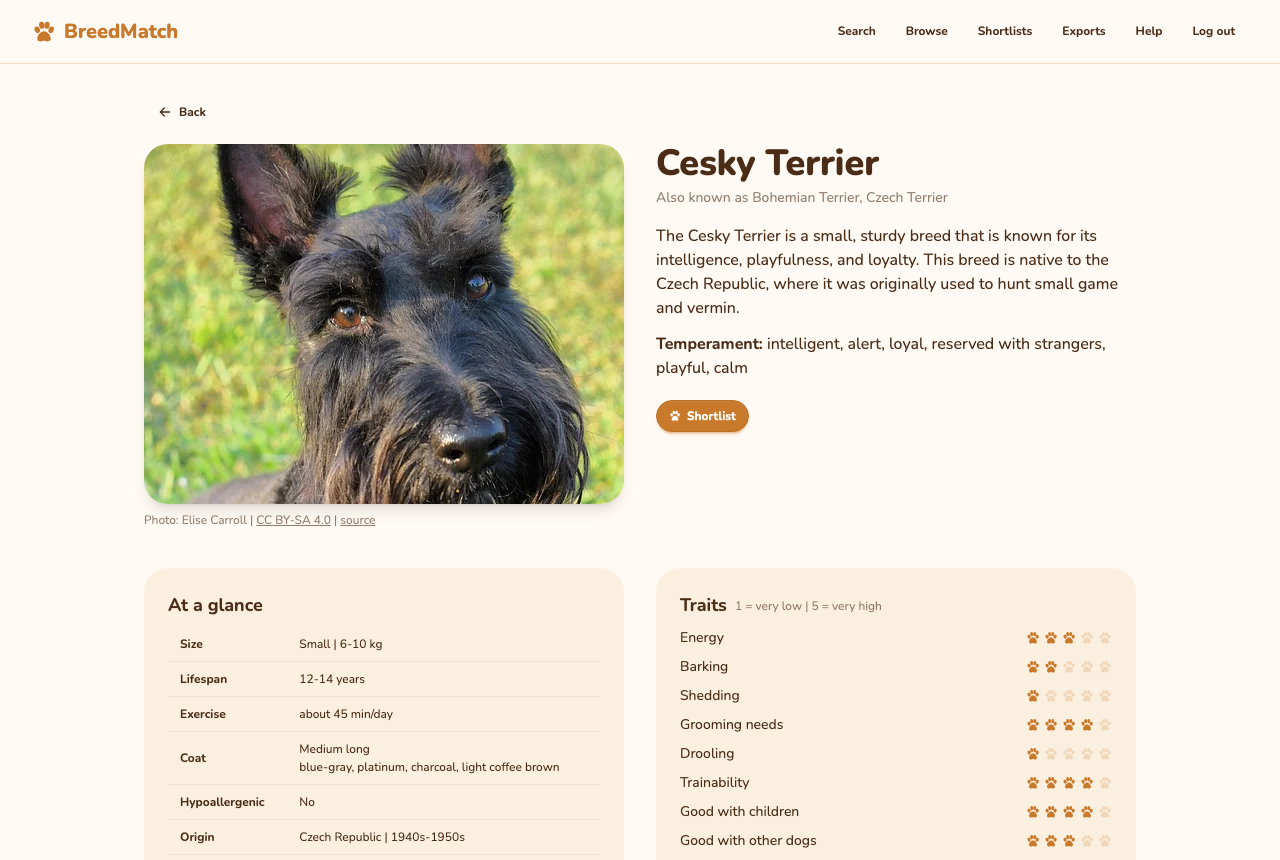
Click a breed for all its details, trait levels, sources, and the photo's author and licence.
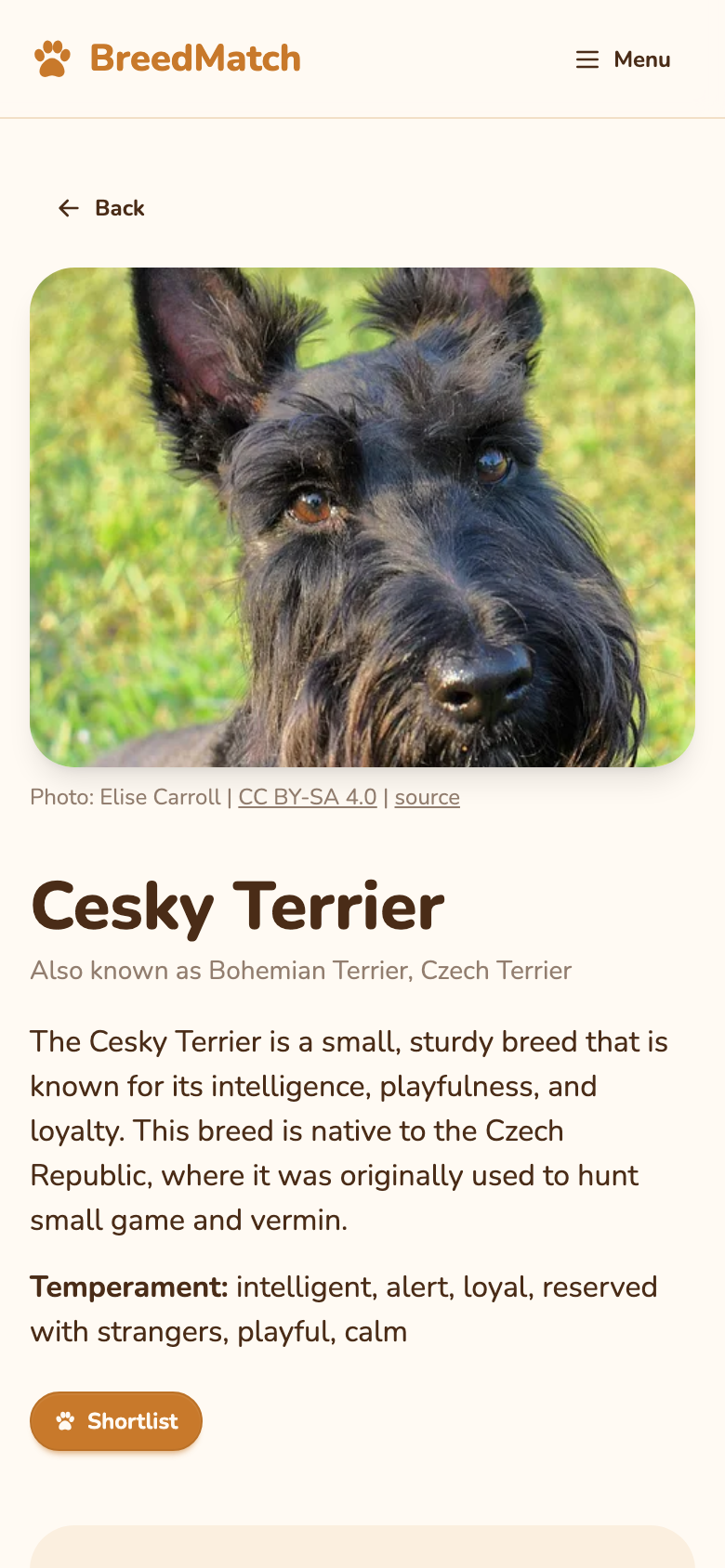
It works on phones too:
4. Keep a shortlist
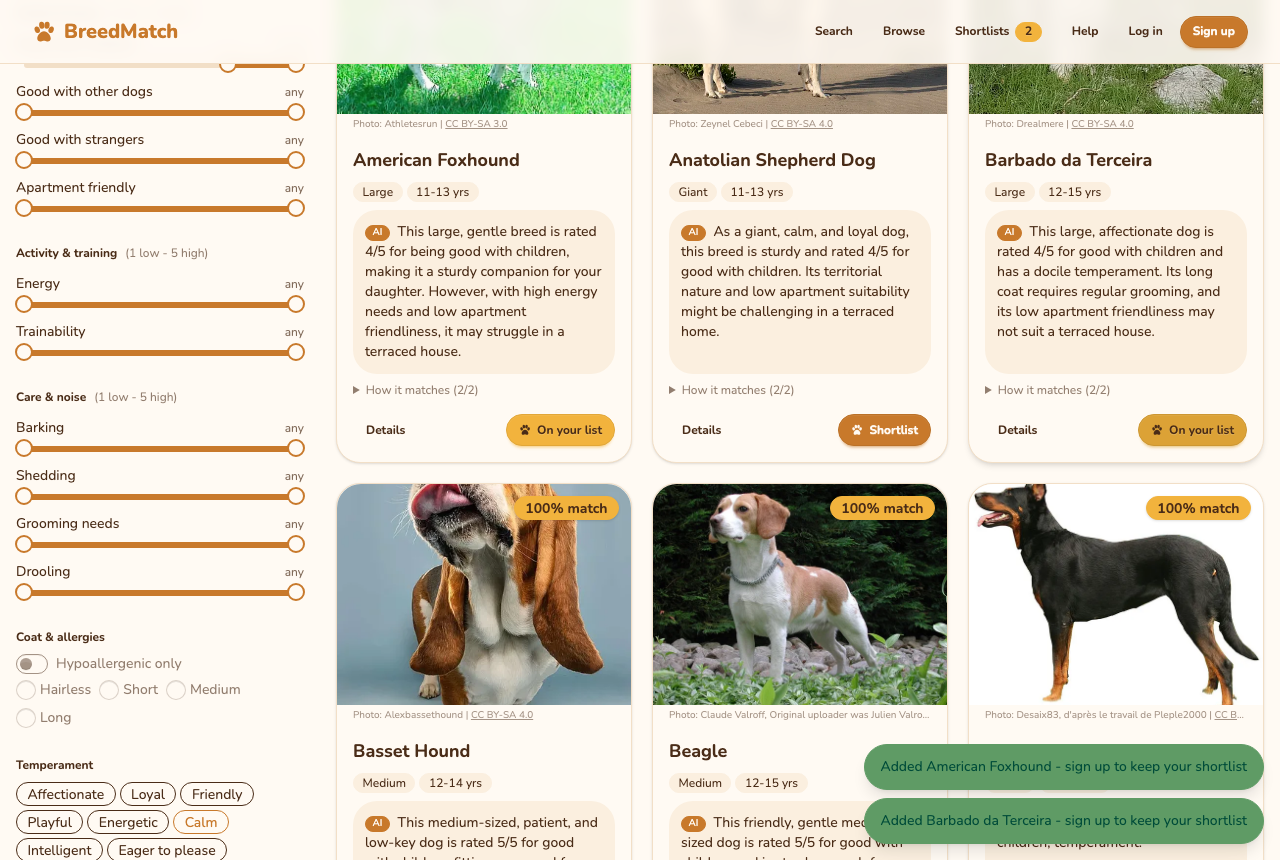
Press Shortlist on any breed (up to 5). You don't need an account for this: your picks are kept in this browser and counted next to Shortlists in the menu.
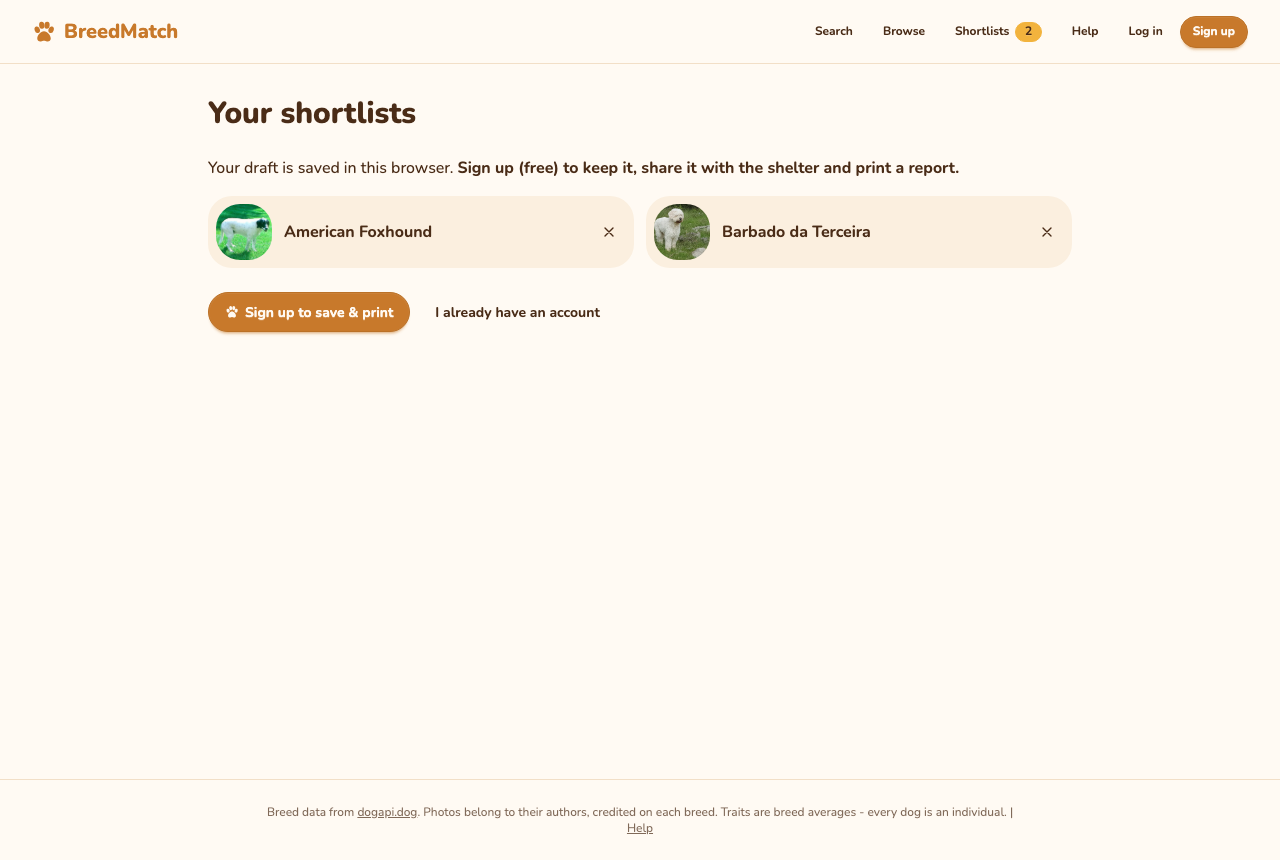
Open Shortlists to review them. To keep them, share them with the shelter or print a report, sign up with an email and password (or log in). Your draft becomes your shortlist when you do.
Once you're signed in:
- Shortlist on a breed card adds it to your active shortlist (created for you the first time), and pressing it again removes it. The button shows On your list for breeds already added.
- A shortlist holds up to 5 breeds; remove one to make room.
- You can keep several named shortlists (e.g. one per family member helping). The active one is marked; use Set as active on another to switch. A new shortlist becomes the active one.
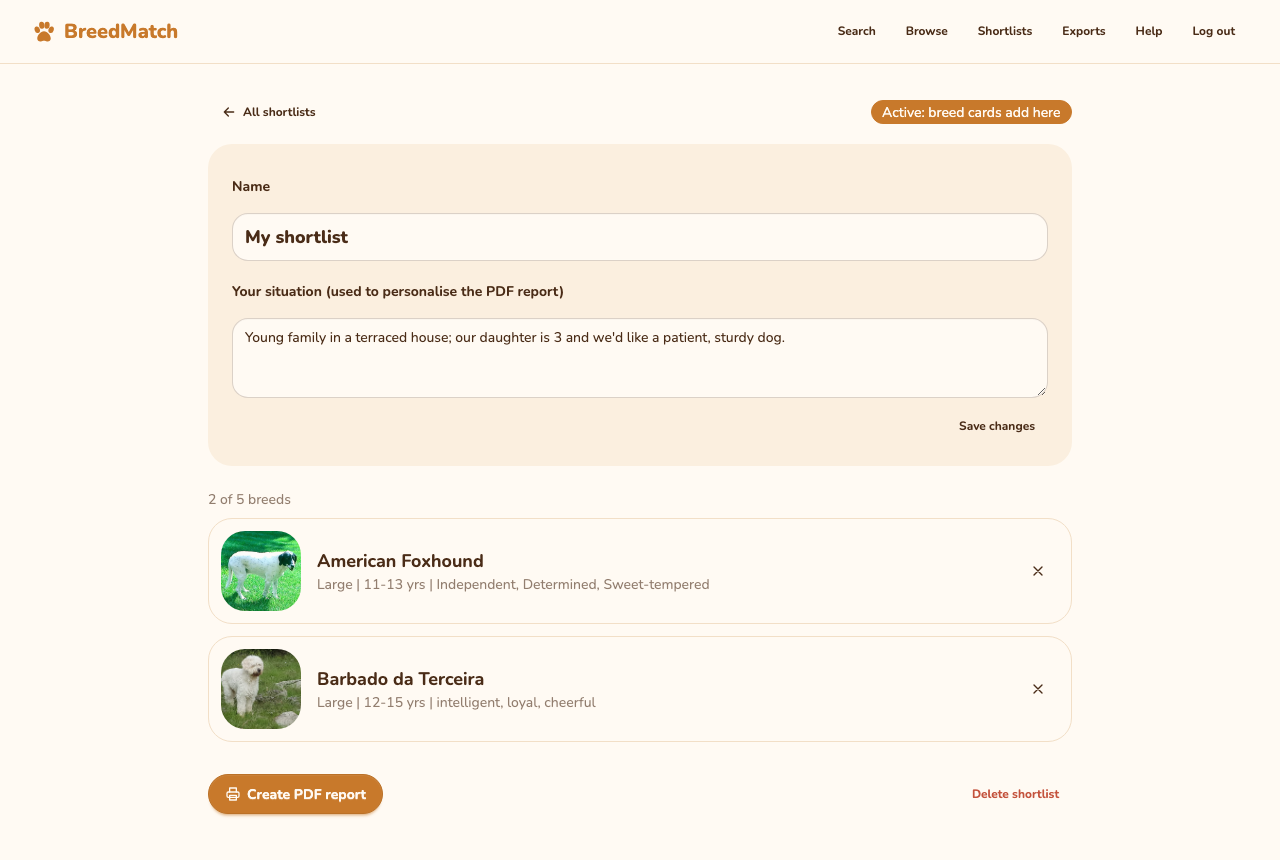
- Rename a shortlist and describe your situation. That description personalises the printed report, and it's pre-filled from your search.
- Remove breeds, or delete a shortlist.
5. Print a report
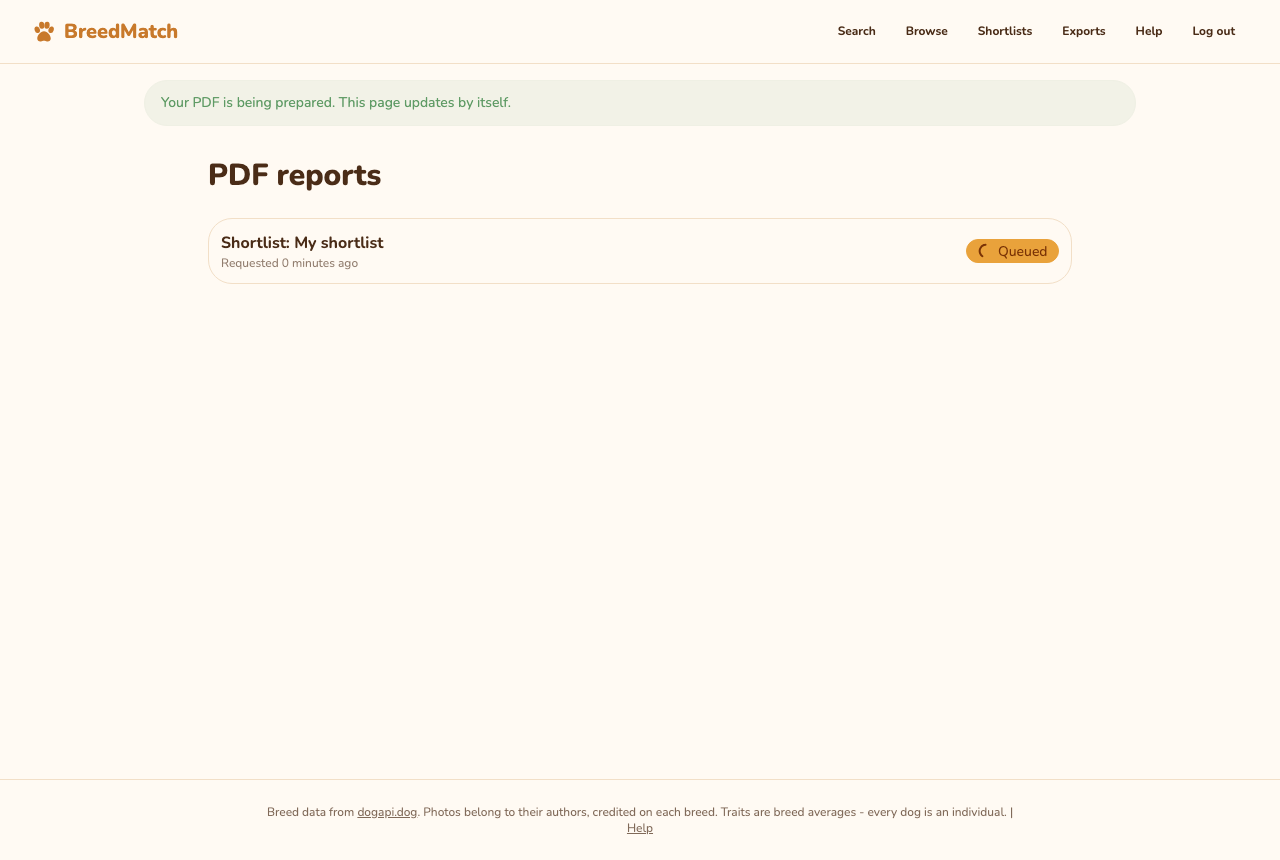
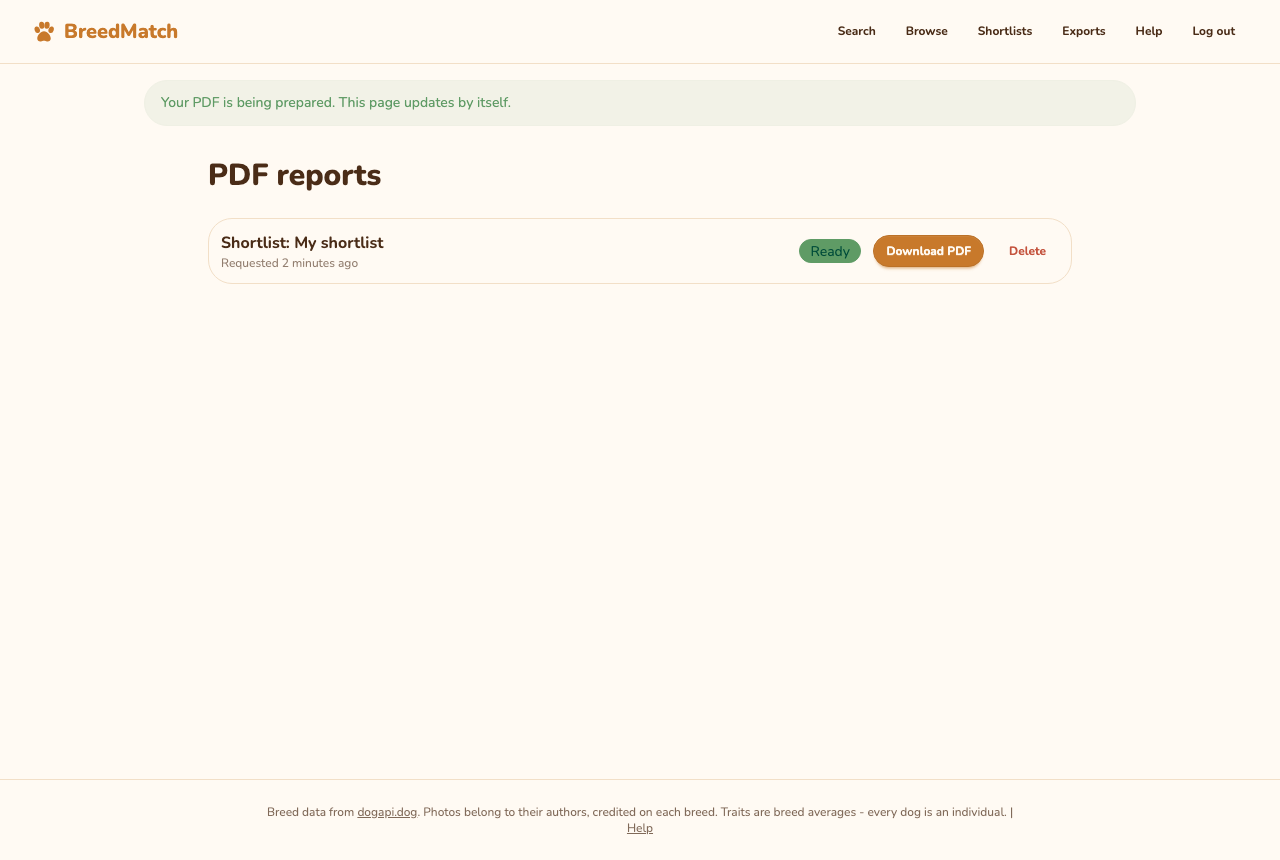
On a shortlist, press Create PDF report. You're taken to Exports, where the status updates by itself: Queued -> Running -> Ready. Then press Download PDF.
The report contains:
- a cover page with your own description,
- an overview written by the AI (clearly labelled) that compares your breeds, plus questions to ask the shelter about the individual dog,
- one page per breed: photo with credit, size, lifespan, exercise, coat, origin, all trait levels, temperament, description, sources, and an AI-written "why it could fit / be prepared for".
Finished reports can be deleted with Delete on the Exports page or under the shortlist.
If a report fails (for example the AI assistant is down), the row says so. Try again later.
6. When the AI assistant is unavailable
A yellow banner says AI assistant unavailable. The search box is paused, but browsing, filters, breed details and shortlists all keep working. Reports need the assistant for their written summary, so wait until the banner is gone.
7. Tips for shelter staff
- Use Browse with must-have filters to answer questions quickly ("hypoallergenic and good with children").
- A search result link (the address in the browser) can be shared: it reopens the same results.
- With a staff account, Shortlists and Exports show your own items; type (part of) an adopter's email in the filter to see theirs. You can open, edit and print their shortlists and open or delete their reports, e.g. for an adopter at the desk. Show mine returns to your own.
- Traits come from dogapi.dog breed data and describe breeds, not individual dogs. Mixed breeds and individual temperament always need your judgement.
- Superusers also see Admin in the menu: breed data, sync history, searches (what people asked and what the AI understood), shortlists and export jobs.
- Staff and administrator roles are given by an administrator of your BreedMatch installation.